<?xml version="1.0" encoding="utf-8"?>
<feed xmlns="http://www.w3.org/2005/Atom" xml:lang="en">
  <title>Posts tagged with “Mfa” on Mark van Lent’s weblog</title>
  <updated>2022-12-07T00:00:00+00:00</updated>
  <link rel="self" type="application/atom+xml" href="https://markvanlent.dev/tags/mfa/index.xml" hreflang="en"/>
  <id>tag:markvanlent.dev,2010-04-02:/tags/mfa/index.xml</id>
  <link rel="alternate" type="text/html" href="https://markvanlent.dev/tags/mfa/" hreflang="en"/>
  <author>
      <name>Mark van Lent</name>
      <uri>https://markvanlent.dev/about/</uri>
    </author>
  <rights>Copyright (c) Mark van Lent, Creative Commons Attribution 4.0 International License.</rights>
  <icon>https://markvanlent.dev/favicon.ico</icon>
  <entry>
    <title type="html"><![CDATA[AWS CLI tools I&#39;ve used]]></title>
    <link rel="alternate" href="https://markvanlent.dev/2022/12/07/aws-cli-tools-ive-used/" type="text/html" />
    <id>https://markvanlent.dev/2022/12/07/aws-cli-tools-ive-used/</id>
    <author>
      <name>map[name:Mark van Lent uri:https://markvanlent.dev/about/]</name>
    </author>
    <category term="aws" />
    <category term="cli" />
    <category term="mfa" />
    <category term="sso" />
    <category term="tools" />
    
    <updated>2022-12-07T20:47:08Z</updated>
    <published>2022-12-07T00:00:00Z</published>
    <content type="html"><![CDATA[<p>A quick post (mostly for myself) to list the command line tools I&rsquo;ve used over
the years to interact with AWS, besides the official AWS Command Line Interface
(AWS CLI).</p>
<p>I was content with the AWS CLI initially, but once I had enabled and required
multi-factor authentication (MFA), using the AWS CLI became a bit of a nuisance.
So I started using <strong><a href="https://github.com/broamski/aws-mfa">aws-mfa</a></strong>. I also
wrote a post about it here, titled <a href="/2019/02/24/using-mfa-with-aws-cli/">Using MFA with AWS
CLI</a>.</p>
<p>The next tool I started using was <strong><a href="https://awsu.me/">Awsume</a></strong>. This Python
package makes it easier to manage your AWS credentials and sessions, especially
if you are accessing more than one account.</p>
<p>Once we started using Single Sign-On (SSO) more and more at work, I switched to
using <strong><a href="https://github.com/99designs/aws-vault">AWS Vault</a></strong>. I <em>think</em> the
reason I switched to AWS Vault was simply because Awsume did not support SSO,
but to be honest, I am not sure about that. (Neither do I know if Awsume
supports SSO at the moment.) Either way, what I really like about AWS Vault is
that it stores the credentials in an encrypted password store. So I no longer
had credentials lying around on my hard drive in plain text.</p>
<p>After reading the article
<a href="https://www.lastweekinaws.com/blog/taking-aws-account-logins-for-granted/">Taking AWS Account Logins For Granted</a>,
I also switched to using <strong><a href="https://granted.dev/">Granted</a></strong>. In contrast to AWS
Vault, Granted does not seem to have a way to securely store your long lived
credentials. If you are using those, you may want to use AWS Vault for those.
Since both tools use the same <code>~/.aws/config</code> file, you can use them next to each
other without a problem.</p>
<p>And that&rsquo;s the current state of affairs for me. Since I effectively only deal
with SSO logins, I use Granted and its <code>assume</code> command for my day-to-day.
Combined with the
<a href="https://addons.mozilla.org/en-GB/firefox/addon/granted/">Granted add-on for Firefox</a>
I can easily use multiple accounts and roles on the command line <em>and</em> in my
browser.</p>]]></content>
  </entry>
  <entry>
    <title type="html"><![CDATA[Using MFA with AWS CLI]]></title>
    <link rel="alternate" href="https://markvanlent.dev/2019/02/24/using-mfa-with-aws-cli/" type="text/html" />
    <id>https://markvanlent.dev/2019/02/24/using-mfa-with-aws-cli/</id>
    <author>
      <name>map[name:Mark van Lent uri:https://markvanlent.dev/about/]</name>
    </author>
    <category term="aws" />
    <category term="cli" />
    <category term="mfa" />
    <category term="security" />
    
    <updated>2021-11-09T20:09:33Z</updated>
    <published>2019-02-24T12:10:00Z</published>
    <content type="html"><![CDATA[<p>This post will explain what my workflow looks like when using the command
line interface (CLI) for Amazon Web Services (AWS) when multi-factor
authentication (MFA) is required.</p>
<p>Since it took me a little while to figure out how to get it working in the first
place, and get a comfortable workflow in the second place, I decided to write it
down here for future reference.</p>
<h2 id="context">Context</h2>
<p>First a bit of context.</p>
<p>One of the AWS best practices is to
<a href="https://docs.aws.amazon.com/IAM/latest/UserGuide/best-practices.html#enable-mfa-for-privileged-users">enable multi-factor authentication (MFA)</a>
for privileged users. You can even
<a href="https://docs.aws.amazon.com/IAM/latest/UserGuide/reference_policies_examples_aws_my-sec-creds-self-manage.html">create a policy to require MFA</a>.
This means that users affected by the policy will have to enter their MFA code
to log in via the web console, but also if they want to access the AWS APIs from
the command line (e.g. in a Python script or using the
<a href="https://docs.aws.amazon.com/cli/latest/userguide/cli-chap-welcome.html">AWS CLI</a>).</p>
<p><strong>Without</strong> MFA, you can configure your credentials in <code>~/.aws/credentials</code> and that
file might look like this:</p>
<div class="highlight"><pre tabindex="0" class="chroma"><code class="language-ini" data-lang="ini"><span class="line"><span class="cl"><span class="k">[default]</span>
</span></span><span class="line"><span class="cl"><span class="na">aws_access_key_id</span> <span class="o">=</span> <span class="s">AKIAIFFJM737PF5LH4VA</span>
</span></span><span class="line"><span class="cl"><span class="na">aws_secret_access_key</span> <span class="o">=</span> <span class="s">+gGgW9ElnjG73//uJxziR8dvgQzs++SFbR4at1Q9</span>
</span></span></code></pre></div><p><em>(Don&rsquo;t worry, the credentials have already been revoked.)</em></p>
<p>Assuming you have
<a href="https://docs.aws.amazon.com/cli/latest/userguide/cli-chap-install.html">installed the AWS CLI</a>,
you can now interact with the AWS API like this:</p>
<div class="highlight"><pre tabindex="0" class="chroma"><code class="language-bash" data-lang="bash"><span class="line"><span class="cl">$ aws s3 ls example.user.bucket
</span></span><span class="line"><span class="cl">2019-02-19 20:23:44 <span class="m">3023</span> Vagrantfile
</span></span><span class="line"><span class="cl">2019-02-19 20:23:42 <span class="m">372</span> config.yml
</span></span><span class="line"><span class="cl">2019-02-19 20:23:44 <span class="m">206115</span> screenshot-1.png
</span></span></code></pre></div><p>But when the use of MFA is enforced, you&rsquo;ll see this:</p>
<div class="highlight"><pre tabindex="0" class="chroma"><code class="language-bash" data-lang="bash"><span class="line"><span class="cl">$ aws s3 ls example.user.bucket
</span></span><span class="line"><span class="cl">
</span></span><span class="line"><span class="cl">An error occurred <span class="o">(</span>AccessDenied<span class="o">)</span> when calling the ListObjects operation: Access Denied
</span></span></code></pre></div><h2 id="assign-an-mfa-device">Assign an MFA device</h2>
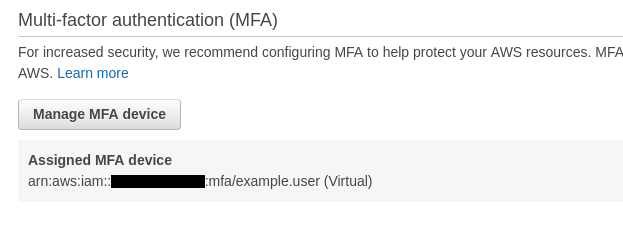
<p>Before we can continue, you&rsquo;ll have to configure an MFA device. See the official
documentation on
<a href="https://docs.aws.amazon.com/IAM/latest/UserGuide/id_credentials_mfa_enable_virtual.html">enabling a Virtual Multi-factor Authentication (MFA) Device</a>
for instructions.</p>
<p>Make note of the assigned device, we&rsquo;ll need it in a moment.</p>
<p><img src="/images/mfa-device.png" alt="The AWS console showing the configured MFA devices"></p>
<h2 id="manual-authentication">Manual authentication</h2>
<p>To be able to use the CLI, you&rsquo;ll have to request a so called &ldquo;session token&rdquo;:</p>
<div class="highlight"><pre tabindex="0" class="chroma"><code class="language-bash" data-lang="bash"><span class="line"><span class="cl">$ aws sts get-session-token <span class="se">\
</span></span></span><span class="line"><span class="cl"><span class="se"></span>    --serial-number arn:aws:iam::xxxxxxxxxxxx:mfa/example.user <span class="se">\
</span></span></span><span class="line"><span class="cl"><span class="se"></span>    --token-code <span class="m">287632</span>
</span></span><span class="line"><span class="cl"><span class="o">{</span>
</span></span><span class="line"><span class="cl">    <span class="s2">&#34;Credentials&#34;</span>: <span class="o">{</span>
</span></span><span class="line"><span class="cl">        <span class="s2">&#34;AccessKeyId&#34;</span>: <span class="s2">&#34;ASIARYSXPEDHOE73FL3V&#34;</span>,
</span></span><span class="line"><span class="cl">        <span class="s2">&#34;SecretAccessKey&#34;</span>: <span class="s2">&#34;S1rS...F8KL&#34;</span>,
</span></span><span class="line"><span class="cl">        <span class="s2">&#34;SessionToken&#34;</span>: <span class="s2">&#34;FQoG...seMF&#34;</span>,
</span></span><span class="line"><span class="cl">        <span class="s2">&#34;Expiration&#34;</span>: <span class="s2">&#34;2019-02-20T07:36:27Z&#34;</span>
</span></span><span class="line"><span class="cl">    <span class="o">}</span>
</span></span><span class="line"><span class="cl"><span class="o">}</span>
</span></span></code></pre></div><p>Note the 6 digit code at the end of the command, this is the code generate by
your MFA device (probably Google Authenticator or a similar app).</p>
<p>You can use these credentials in several ways:</p>
<ul>
<li>
<p>Expose them via environment variables:</p>
<div class="highlight"><pre tabindex="0" class="chroma"><code class="language-bash" data-lang="bash"><span class="line"><span class="cl">$ <span class="nb">export</span> <span class="nv">AWS_ACCESS_KEY_ID</span><span class="o">=</span>ASIARYSXPEDHOE73FL3V
</span></span><span class="line"><span class="cl">$ <span class="nb">export</span> <span class="nv">AWS_SECRET_ACCESS_KEY</span><span class="o">=</span>S1rS...F8KL
</span></span><span class="line"><span class="cl">$ <span class="nb">export</span> <span class="nv">AWS_SESSION_TOKEN</span><span class="o">=</span>FQoG...1seMF
</span></span></code></pre></div></li>
<li>
<p>Put them in the credentials file (<code>~/.aws/credentials</code>) as a new profile:</p>
<div class="highlight"><pre tabindex="0" class="chroma"><code class="language-ini" data-lang="ini"><span class="line"><span class="cl"><span class="k">[default]</span>
</span></span><span class="line"><span class="cl"><span class="na">aws_access_key_id</span> <span class="o">=</span> <span class="s">AKIAIFFJM737PF5LH4VA</span>
</span></span><span class="line"><span class="cl"><span class="na">aws_secret_access_key</span> <span class="o">=</span> <span class="s">+gGgW9ElnjG73//uJxziR8dvgQzs++SFbR4at1Q9</span>
</span></span><span class="line"><span class="cl">
</span></span><span class="line"><span class="cl"><span class="k">[session]</span>
</span></span><span class="line"><span class="cl"><span class="na">aws_access_key_id</span><span class="o">=</span><span class="s">ASIARYSXPEDHOE73FL3V</span>
</span></span><span class="line"><span class="cl"><span class="na">aws_secret_access_key</span><span class="o">=</span><span class="s">S1rS...F8KL</span>
</span></span><span class="line"><span class="cl"><span class="na">aws_session_token</span><span class="o">=</span><span class="s">FQoG...1seMF</span>
</span></span></code></pre></div><p>Note that with this solution, you&rsquo;ll have to specify the new profile when
using the CLI, e.g. &ldquo;<code>aws s3 ls example.user.bucket --profile session</code>&rdquo;</p>
</li>
</ul>
<p>Since the token is only valid for 12 hours in my case, the manual workflow means
you would have to do the copy/paste routine at least once per (work)day. Since I
don&rsquo;t like repetitive tasks and this is an excellent task to (at least
partially) automate, let&rsquo;s make the computer do the repetitive work for us.</p>
<h2 id="assisted-management-of-session-tokens">Assisted management of session tokens</h2>
<p>Obviously, I&rsquo;m not the first one to want this, so I use a tool that already
exists: <code>aws-mfa</code> (<a href="https://pypi.org/project/aws-mfa/">PyPI</a>,
<a href="https://github.com/broamski/aws-mfa">GitHub</a>).</p>
<p>There are alternatives that do, more or less, the same thing. What I liked about
this tool:</p>
<ul>
<li>MIT license</li>
<li>They use the <a href="https://pypi.org/project/boto3/">boto3</a> library instead of
starting a subprocess, running AWS CLI and parsing the JSON output.</li>
</ul>
<p>As described in the documentation of the tool, you&rsquo;ll have to modify your
credentials file (again: <code>~/.aws/credentials</code>) a little bit:</p>
<div class="highlight"><pre tabindex="0" class="chroma"><code class="language-ini" data-lang="ini"><span class="line"><span class="cl"><span class="k">[default-long-term]</span>
</span></span><span class="line"><span class="cl"><span class="na">aws_access_key_id</span> <span class="o">=</span> <span class="s">AKIAIFFJM737PF5LH4VA</span>
</span></span><span class="line"><span class="cl"><span class="na">aws_secret_access_key</span> <span class="o">=</span> <span class="s">+gGgW9ElnjG73//uJxziR8dvgQzs++SFbR4at1Q9</span>
</span></span><span class="line"><span class="cl"><span class="na">aws_mfa_device</span> <span class="o">=</span> <span class="s">arn:aws:iam::xxxxxxxxxxxx:mfa/example.user</span>
</span></span></code></pre></div><p>Note that the profile name has changed and that the &ldquo;<code>aws_mfs_device</code>&rdquo; line has
been added.</p>
<p>With this configuration in place, you can request an session token:</p>
<div class="highlight"><pre tabindex="0" class="chroma"><code class="language-bash" data-lang="bash"><span class="line"><span class="cl">$ aws-mfa
</span></span><span class="line"><span class="cl">INFO - Validating credentials <span class="k">for</span> profile: default
</span></span><span class="line"><span class="cl">INFO - Short term credentials section default is missing, obtaining new credentials.
</span></span><span class="line"><span class="cl">Enter AWS MFA code <span class="k">for</span> device <span class="o">[</span>arn:aws:iam::xxxxxxxxxxxx:mfa/example.user<span class="o">]</span> <span class="o">(</span>renewing <span class="k">for</span> <span class="m">43200</span> seconds<span class="o">)</span>: <span class="m">466139</span>
</span></span><span class="line"><span class="cl">INFO - Fetching Credentials - Profile: default, Duration: <span class="m">43200</span>
</span></span><span class="line"><span class="cl">INFO - Success! Your credentials will expire in <span class="m">43200</span> seconds at: 2019-02-20 08:03:25+00:00
</span></span></code></pre></div><p>If you check your credentials file again, you&rsquo;ll see that a &ldquo;<code>default</code>&rdquo; profile
has been added.</p>
<div class="highlight"><pre tabindex="0" class="chroma"><code class="language-ini" data-lang="ini"><span class="line"><span class="cl"><span class="k">[default]</span>
</span></span><span class="line"><span class="cl"><span class="na">assumed_role</span> <span class="o">=</span> <span class="s">False</span>
</span></span><span class="line"><span class="cl"><span class="na">aws_access_key_id</span> <span class="o">=</span> <span class="s">ASIARYSXPEDHNH5EOH3I</span>
</span></span><span class="line"><span class="cl"><span class="na">aws_secret_access_key</span> <span class="o">=</span> <span class="s">fcD3...+FL3A</span>
</span></span><span class="line"><span class="cl"><span class="na">aws_session_token</span> <span class="o">=</span> <span class="s">FQoG...seMF</span>
</span></span><span class="line"><span class="cl"><span class="na">aws_security_token</span> <span class="o">=</span> <span class="s">FQo...seMF</span>
</span></span><span class="line"><span class="cl"><span class="na">expiration</span> <span class="o">=</span> <span class="s">2019-02-20 08:03:25</span>
</span></span><span class="line"><span class="cl">
</span></span><span class="line"><span class="cl"><span class="k">[default-long-term]</span>
</span></span><span class="line"><span class="cl"><span class="na">aws_access_key_id</span> <span class="o">=</span> <span class="s">AKIAIFFJM737PF5LH4VA</span>
</span></span><span class="line"><span class="cl"><span class="na">aws_secret_access_key</span> <span class="o">=</span> <span class="s">+gGgW9ElnjG73//uJxziR8dvgQzs++SFbR4at1Q9</span>
</span></span><span class="line"><span class="cl"><span class="na">aws_mfa_device</span> <span class="o">=</span> <span class="s">arn:aws:iam::xxxxxxxxxxxx:mfa/example.user</span>
</span></span></code></pre></div><p>Your original credentials in the &ldquo;<code>default-long-term</code>&rdquo; section are unchanged,
but the new &ldquo;<code>default</code>&rdquo; profile has all the short lived credentials.</p>
<p>As you can see, the new profile has an &ldquo;<code>aws_session_token</code>&rdquo; and an
&ldquo;<code>aws_security_token</code>&rdquo; entry with the same token. Apparently this is to
<a href="https://github.com/broamski/aws-mfa/blob/0.0.12/awsmfa/__init__.py#L345-L346">support both boto and boto3</a></p>
<p>Once again the AWS CLI is working again:</p>
<div class="highlight"><pre tabindex="0" class="chroma"><code class="language-bash" data-lang="bash"><span class="line"><span class="cl">$ aws s3 ls example.user.bucket
</span></span><span class="line"><span class="cl">2019-02-19 20:23:44 <span class="m">3023</span> Vagrantfile
</span></span><span class="line"><span class="cl">2019-02-19 20:23:42 <span class="m">372</span> config.yml
</span></span><span class="line"><span class="cl">2019-02-19 20:23:44 <span class="m">206115</span> screenshot-1.png
</span></span></code></pre></div><p>The biggest difference with the manual workflow is that this takes a whole lot
less typing and is much less error prone.</p>]]></content>
  </entry>
</feed>