<?xml version="1.0" encoding="utf-8"?>
<feed xmlns="http://www.w3.org/2005/Atom" xml:lang="en">
  <title>Posts tagged with “Proxy” on Mark van Lent’s weblog</title>
  <updated>2022-05-10T00:00:00+00:00</updated>
  <link rel="self" type="application/atom+xml" href="https://markvanlent.dev/tags/proxy/index.xml" hreflang="en"/>
  <id>tag:markvanlent.dev,2010-04-02:/tags/proxy/index.xml</id>
  <link rel="alternate" type="text/html" href="https://markvanlent.dev/tags/proxy/" hreflang="en"/>
  <author>
      <name>Mark van Lent</name>
      <uri>https://markvanlent.dev/about/</uri>
    </author>
  <rights>Copyright (c) Mark van Lent, Creative Commons Attribution 4.0 International License.</rights>
  <icon>https://markvanlent.dev/favicon.ico</icon>
  <entry>
    <title type="html"><![CDATA[Pulling Docker images via a SOCKS5 proxy]]></title>
    <link rel="alternate" href="https://markvanlent.dev/2022/05/10/pulling-docker-images-via-a-socks5-proxy/" type="text/html" />
    <id>https://markvanlent.dev/2022/05/10/pulling-docker-images-via-a-socks5-proxy/</id>
    <author>
      <name>map[name:Mark van Lent uri:https://markvanlent.dev/about/]</name>
    </author>
    <category term="docker" />
    <category term="proxy" />
    <category term="ssh" />
    
    <updated>2022-05-10T20:14:56Z</updated>
    <published>2022-05-10T00:00:00Z</published>
    <content type="html"><![CDATA[<p>This post describes how you can work around a firewall to pull Docker images
from a server that you do not have direct access to, using a SOCKS5 proxy.</p>
<h2 id="why-would-you-want-to-do-this">Why would you want to do this?</h2>
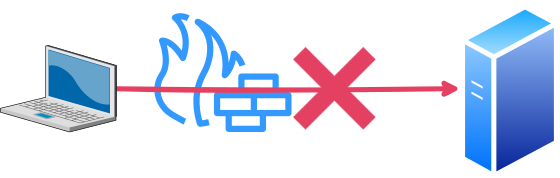
<p>Let us assume you are in a corporate environment. And let us further assume that
you want to pull Docker images from a registry that you do not have direct
access to from that corporate environment, for instance because the registry is
running on a non-standard port and is thus blocked by a firewall.</p>
<p><img src="/images/blocked_connection.svg" alt="The direct connection between the laptop and server is not allowed"></p>
<p>So for instance the following does not work for you:</p>
<div class="highlight"><pre tabindex="0" class="chroma"><code class="language-bash" data-lang="bash"><span class="line"><span class="cl">docker pull registry.example.com:5678/image
</span></span></code></pre></div><p>Now let&rsquo;s make a few more assumptions:</p>
<ul>
<li>You have got SSH access to a machine outside of the corporate environment.</li>
<li>You are not violating any policy by bypassing the firewall, or have permission
to do so.</li>
</ul>
<h2 id="workaround">Workaround</h2>
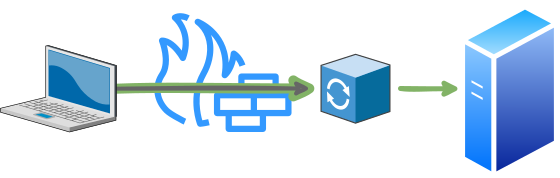
<p>To work around the issue, you can do the following:</p>
<ul>
<li>Connect to a machine over SSH</li>
<li>Tunnel your <code>docker pull</code> command via that SSH connection.</li>
</ul>
<p><img src="/images/allowed_connection.svg" alt="Using a proxy to tunnel your traffic"></p>
<h3 id="setting-up-the-socks5-proxy-connection">Setting up the SOCKS5 proxy connection</h3>
<p>You are going to use the <code>-D</code> option in your SSH command. This allocates a
socket listing on a port. Connections made to this port are forwarded over the
(secure) channel.</p>
<p>For example, if you can use host <code>172.31.10.5</code> as a proxy, the command would look
like this:</p>
<div class="highlight"><pre tabindex="0" class="chroma"><code class="language-plain" data-lang="plain"><span class="line"><span class="cl">ssh -D 8080 172.31.10.5
</span></span></code></pre></div><p>Every connection to port <code>8080</code> on <code>localhost</code> is proxied via host <code>172.31.10.5</code>.</p>
<h3 id="configure-docker">Configure Docker</h3>
<p>To make Docker use the proxy, you will have to configure <code>dockerd</code>. One way to do
this is to create the file <code>/etc/systemd/system/docker.service.d/proxy.conf</code>
with the following content:</p>
<div class="highlight"><pre tabindex="0" class="chroma"><code class="language-ini" data-lang="ini"><span class="line"><span class="cl"><span class="k">[Service]</span>
</span></span><span class="line"><span class="cl"><span class="na">Environment</span><span class="o">=</span><span class="s">&#34;HTTP_PROXY=socks5://127.0.0.1:8080&#34;</span>
</span></span><span class="line"><span class="cl"><span class="na">Environment</span><span class="o">=</span><span class="s">&#34;HTTPS_PROXY=socks5://127.0.0.1:8080&#34;</span>
</span></span></code></pre></div><p>(You most likely do not even need the <code>HTTP_PROXY</code> line, but it also doesn&rsquo;t
hurt. ;-) )</p>
<p>Once this file is in place, you need to restart the Docker service:</p>
<div class="highlight"><pre tabindex="0" class="chroma"><code class="language-bash" data-lang="bash"><span class="line"><span class="cl">systemctl daemon-reload
</span></span><span class="line"><span class="cl">systemctl restart docker
</span></span></code></pre></div><p>When you run the following command again, the traffic is tunneled via your proxy.</p>
<div class="highlight"><pre tabindex="0" class="chroma"><code class="language-bash" data-lang="bash"><span class="line"><span class="cl">docker pull registry.example.com:5678/image
</span></span></code></pre></div><p>Voilà, the firewall is bypassed and you can now pull your Docker image.</p>]]></content>
  </entry>
  <entry>
    <title type="html"><![CDATA[Setting up a temporary HTTP/HTTPS proxy via SSH]]></title>
    <link rel="alternate" href="https://markvanlent.dev/2013/09/19/setting-up-a-temporary-http-https-proxy-via-ssh/" type="text/html" />
    <id>https://markvanlent.dev/2013/09/19/setting-up-a-temporary-http-https-proxy-via-ssh/</id>
    <author>
      <name>map[name:Mark van Lent uri:https://markvanlent.dev/about/]</name>
    </author>
    <category term="development" />
    <category term="devops" />
    <category term="docker" />
    <category term="proxy" />
    <category term="ssh" />
    
    <updated>2022-05-10T20:18:22Z</updated>
    <published>2013-09-19T06:32:00Z</published>
    <content type="html"><![CDATA[<p>Currently I&rsquo;m working on a project where I have the staging
environment running on a virtual machine in a vlan. However, the
virtual machine cannot directly access the internet for security
reasons. This is inconvenient when I want to e.g. run a
<a href="https://www.buildout.org/en/latest/">buildout</a> to update the project.</p>
<p>A colleague told me to use
<a href="https://acme.com/software/micro_proxy/"><code>micro_proxy</code></a> and
<a href="https://acme.com/software/micro_inetd/"><code>micro_inetd</code></a> to proxy
traffic via my laptop. This is a description of how you can set things up.</p>
<div class="note update">
  <div class="note_header">
    Update (2019-07-15)<span class="hidden">:</span>
  </div>
  <div class="note_body">
    I am currently using a Docker to run a proxy on my
laptop. I have added a <a href="#docker">Docker</a> section where I describe my new
setup.
  </div>
</div>

<h2 id="ad-hoc">Ad hoc</h2>
<p>Obviously the first step is to install the relevant packages on the
local machine (Ubuntu in my case):</p>
<div class="highlight"><pre tabindex="0" class="chroma"><code class="language-bash" data-lang="bash"><span class="line"><span class="cl">$ sudo apt-get install micro-proxy micro-inetd
</span></span></code></pre></div><p>The next step is to run the proxy (again: on my laptop) and make sure
it accepts connections on port <code>3128</code>:</p>
<div class="highlight"><pre tabindex="0" class="chroma"><code class="language-bash" data-lang="bash"><span class="line"><span class="cl">$ micro-inetd <span class="m">3128</span> /usr/sbin/micro_proxy
</span></span></code></pre></div><p>Then, when you SSH into the remote machine you will have to forward
the right port:</p>
<div class="highlight"><pre tabindex="0" class="chroma"><code class="language-bash" data-lang="bash"><span class="line"><span class="cl">$ ssh box.example.com -R 3128:localhost:3128
</span></span></code></pre></div><p>Whenever you want to access the internet, you&rsquo;ll have to use the proxy
listening on port <code>3128</code>. For instance to run <code>wget</code> and <code>buildout</code>,
you can set the following environment variables:</p>
<div class="highlight"><pre tabindex="0" class="chroma"><code class="language-bash" data-lang="bash"><span class="line"><span class="cl">$ <span class="nb">export</span> <span class="nv">http_proxy</span><span class="o">=</span>http://localhost:3128
</span></span><span class="line"><span class="cl">$ <span class="nb">export</span> <span class="nv">https_proxy</span><span class="o">=</span>http://localhost:3128
</span></span></code></pre></div><p>(Note that I&rsquo;m also proxying HTTPS traffic here, which is supported by
<code>micro_proxy</code>.)</p>
<p>The following <code>wget</code> command should now succeed:</p>
<div class="highlight"><pre tabindex="0" class="chroma"><code class="language-bash" data-lang="bash"><span class="line"><span class="cl">$ wget http://www.google.com/
</span></span></code></pre></div><h2 id="repeatable">Repeatable</h2>
<p>Assuming the ad hoc setup works, you may want to configure things so
things are a little bit easier the next time you want to use it. This
is what I did.</p>
<p>So I don&rsquo;t have to remember how to start the proxy, I added this line
to the <code>~/.bashrc</code> file on my local machine:</p>
<div class="highlight"><pre tabindex="0" class="chroma"><code class="language-bash" data-lang="bash"><span class="line"><span class="cl"><span class="nb">alias</span> <span class="nv">start_proxy</span><span class="o">=</span><span class="s1">&#39;echo Running proxy on port 3128 &amp;&amp; micro-inetd 3128 /usr/sbin/micro_proxy&#39;</span>
</span></span></code></pre></div><p>The SSH command is also too much typing for my liking. So I added this
to my <code>~/.ssh/config</code> file:</p>
<div class="highlight"><pre tabindex="0" class="chroma"><code class="language-ini" data-lang="ini"><span class="line"><span class="cl"><span class="na">Host box</span>
</span></span><span class="line"><span class="cl">    <span class="na">HostName box.example.com</span>
</span></span><span class="line"><span class="cl">    <span class="na">RemoteForward 3128 localhost:3128</span>
</span></span></code></pre></div><p>To make sure that the HTTP(S) proxy is used on the remote machine, I
added this to my <code>~/.bashrc</code> file on the remote:</p>
<div class="highlight"><pre tabindex="0" class="chroma"><code class="language-bash" data-lang="bash"><span class="line"><span class="cl"><span class="nb">export</span> <span class="nv">http_proxy</span><span class="o">=</span>http://localhost:3128
</span></span><span class="line"><span class="cl"><span class="nb">export</span> <span class="nv">https_proxy</span><span class="o">=</span>http://localhost:3128
</span></span></code></pre></div><h2 id="end-result">End result</h2>
<p>So whenever I want to work on the staging environment, I open a
terminal and run:</p>
<div class="highlight"><pre tabindex="0" class="chroma"><code class="language-bash" data-lang="bash"><span class="line"><span class="cl">$ start_proxy
</span></span></code></pre></div><p>In another terminal I type:</p>
<div class="highlight"><pre tabindex="0" class="chroma"><code class="language-bash" data-lang="bash"><span class="line"><span class="cl">$ ssh box
</span></span></code></pre></div><p>And I&rsquo;m good to go.</p>
<p>Now, there may be better solutions (especially if you want to
permanently setup a proxy), but for my purposes this works great.</p>
<h2 id="docker">Docker</h2>
<div class="note update">
  <div class="note_header">
    Update (2019-07-15)<span class="hidden">:</span>
  </div>
  <div class="note_body">
    I&rsquo;ve added this section to document an alternative to the
<code>micro_inetd</code>/<code>micro_proxy</code> combination.
  </div>
</div>

<p>When I originally wrote this article, I was not yet (or only just) using Docker.
But when I was setting up a new laptop a while ago, I wanted to run a proxy in a
Docker container.</p>
<p>As a result, I now run the following to start a proxy:</p>
<div class="highlight"><pre tabindex="0" class="chroma"><code class="language-bash" data-lang="bash"><span class="line"><span class="cl">$ docker run --name squid -d -p 3128:3128 datadog/squid
</span></span></code></pre></div><p>This way I don&rsquo;t have to install <code>micro_proxy</code> and <code>micro_inetd</code> on my machine.</p>]]></content>
  </entry>
</feed>